Readable locomotion
Navigation should feel predictable and not force abrupt camera movements that can cause discomfort.
Immersive Presentation Flow
VR gives clients a stronger sense of scale and layout than flat media, but it also raises quality requirements. Any instability in movement, uneven frame pacing, or visual inconsistency becomes immediately noticeable and reduces trust in the presentation.
This guide focuses on practical VR readiness for converted 3ds Max scenes: what to prioritize first, what to test before delivery, and how to keep the experience comfortable for first-time users.
Navigation should feel predictable and not force abrupt camera movements that can cause discomfort.
Stable performance matters more than peak visual effects when users are inside the scene for multiple minutes.
Guide attention to key design zones so the walkthrough supports decisions rather than random exploration.
Stage 01 · Design baseline
A good VR build starts with a clear authoring baseline. Keep focal compositions and primary material hierarchy intact so users can immediately understand design priorities after entering immersive mode.
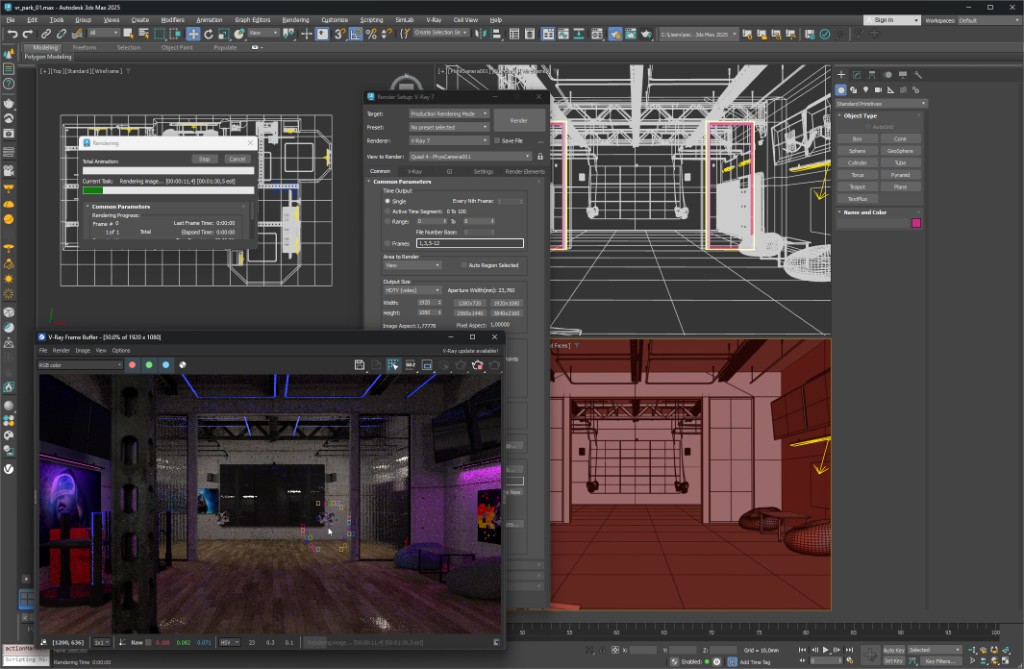
Stage 02 · Runtime confidence
Test movement speed, camera behavior, and visibility transitions in the converted runtime. VR review is a business experience as much as a technical one, so confidence and clarity should stay high from entry to final approval point.
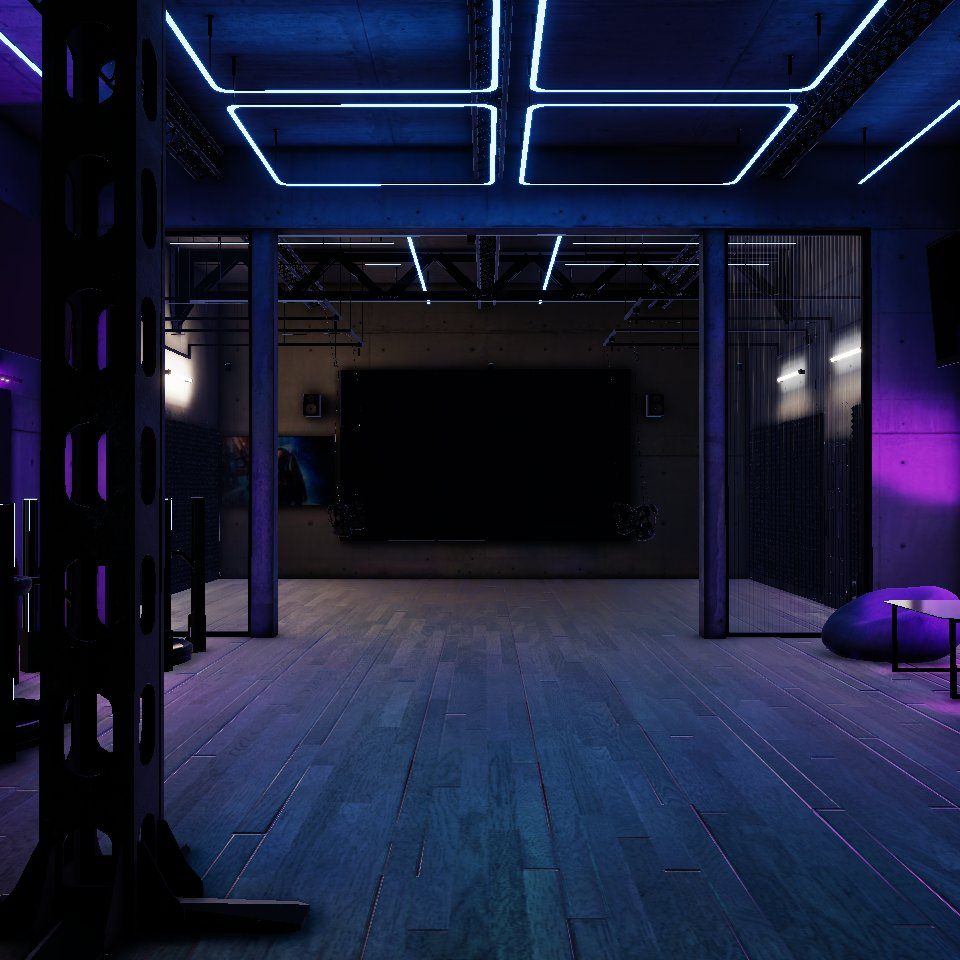
For browser presentations see WebGL from 3ds Max. For pipeline structure open Unity HDRP workflow. For material translation context use Corona to Unity.